


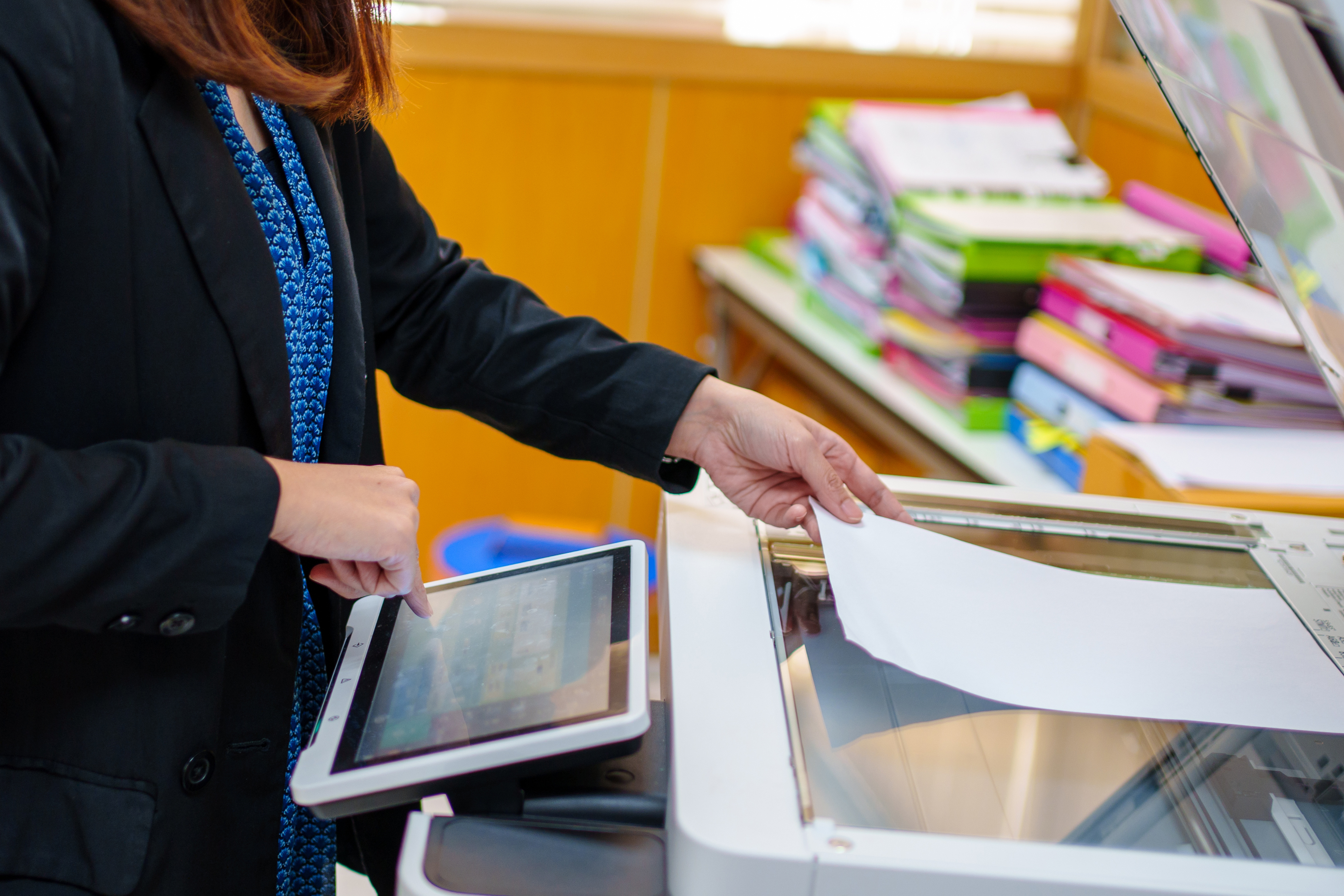
You probably wouldn't hand someone an old company laptop without clearing its files first. But what about the office printer?
Modern printers can do far more than print. Many have processors, memory, internal storage, and network connections. Some can even retain information from documents you've printed, copied, or scanned.
So, do printers actually store copies of your documents?
Yes, some do. Office printers and multifunction copiers can temporarily store print and scan data while processing jobs. Certain models can also save complete documents, job histories, and other information to internal storage. Whether that information remains after printing depends on the device, its features, and its settings.
Here's what businesses should know.
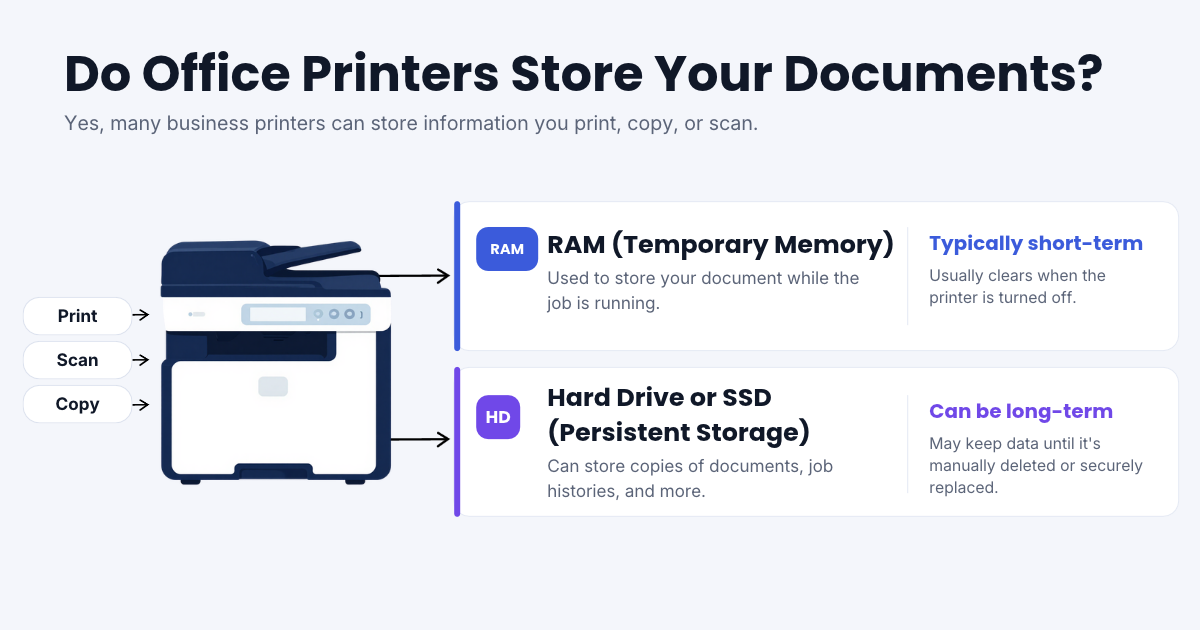
What Information Does an Office Printer Store?
Depending on the model and configuration, a business printer may store several types of information:
-
Print jobs: Documents temporarily processed for printing or deliberately saved for future use.
-
Scanned documents: Images or files created during scanning, sometimes stored while being processed or sent.
-
Fax data: Information associated with incoming or outgoing faxes.
-
Job history: Records of printing and scanning activity, which may include usernames, filenames, dates, or destinations.
-
Address books and settings: Email addresses, network locations, user information, and device configurations.
Not every printer stores all this information. For example, HP documents stored-print-job features on certain business printers, including options that let users save a document on the device and print it again later.
The important distinction is between information a printer uses temporarily and information it retains after the job is complete.
Does Printer Memory Get Erased When You Turn It Off?
It depends on the type of memory. Much like a computer, a printer may use both temporary memory and longer-term storage to perform different functions.
RAM: Temporary Memory
- Printers use RAM to process documents, manage tasks, and communicate with connected devices. RAM is generally volatile, meaning its contents are lost when power is removed. However, clearing RAM doesn't necessarily remove files stored elsewhere inside the printer.
Hard Drives and Flash Storage: Persistent Memory
- Some office printers and multifunction copiers have hard drives, solid-state drives, or other nonvolatile storage. This storage may contain saved print jobs, temporary document images, device settings, or other information. Unlike RAM, persistent storage can retain data when the printer is turned off.
In its documentation on protecting stored printer data, HP explains that certain devices offer storage encryption and secure-erasure settings to protect information on internal drives.
The takeaway: Turning off a printer is not the same as securely erasing its stored data.
Can Someone Retrieve Documents From an Old Office Copier?
Potentially, yes. The Federal Trade Commission (FTC) has specifically addressed the security risks associated with digital copiers.
As the FTC explains:
"The hard drive in a digital copier stores data about the documents it copies, prints, scans, faxes or emails."
— Federal Trade Commission, Digital Copier Data Security: A Guide for Businesses
The agency warns that inadequately protected information may be exposed through unauthorized access or by extracting data from a device's storage.
That doesn't mean every printer is vulnerable or that retrieving old documents is easy. The actual risk depends on whether information was retained, how it was stored, and which security protections were in place. Modern business printers may offer encryption, access controls, secure printing, and data-erasure capabilities that help reduce these risks.
What Happens to Stored Documents When a Copier Lease Ends?
Here's where printer data security becomes especially important.
Office copiers often change hands. A device may be returned at the end of a lease, refurbished, resold, or installed at another business. If the copier contains persistent storage, your organization should know what happens to that storage before the equipment leaves your control.
Before returning or replacing a copier, ask:
-
Does the device have a hard drive or other persistent storage?
-
What types of information might remain on it?
-
Will the stored data be securely erased?
-
Who is responsible for performing the erasure?
-
Can we receive confirmation that the process was completed?
Don't assume that restoring a printer's factory settings is equivalent to securely erasing its storage. The distinction matters because resetting settings, deleting files, and sanitizing storage can involve different processes.
The National Institute of Standards and Technology (NIST) addresses this in its Guidelines for Media Sanitization, SP 800-88 Revision 2, published in September 2025.
NIST recommends establishing appropriate sanitization procedures based on factors such as the sensitivity of the information, the storage technology, and the device's intended reuse or disposal.
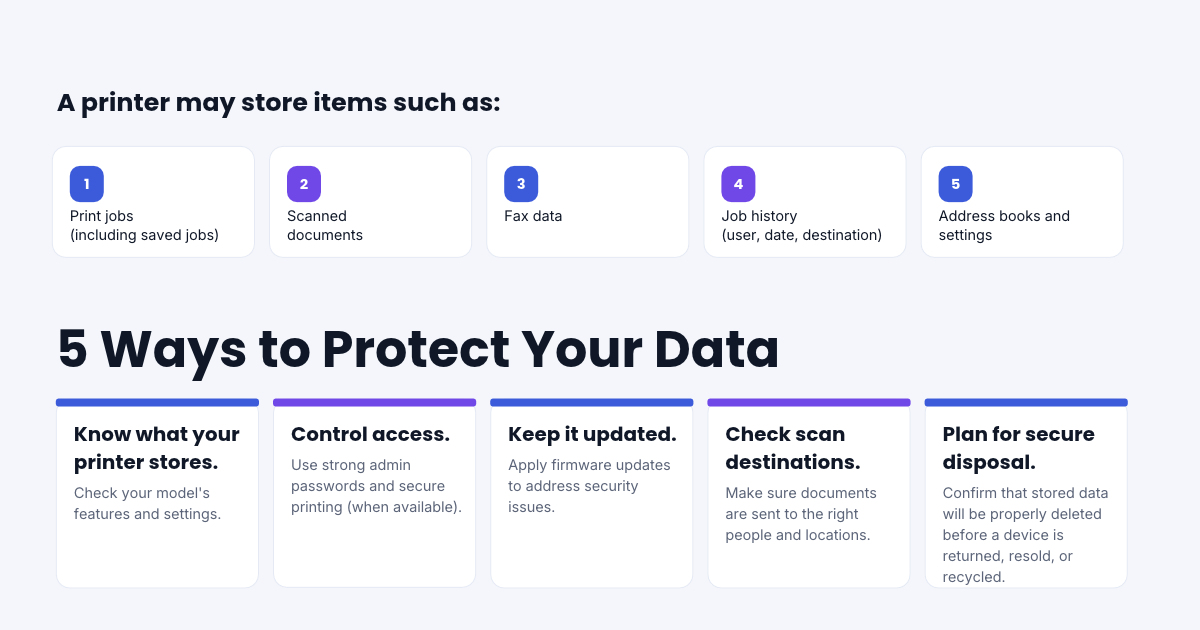
Five Ways to Protect Sensitive Documents on Office Printers
You don't have to be a cybersecurity specialist to start improving printer security. These five checks are a practical place to begin.
1. Find Out What Your Printers Actually Store
Start with the make and model of each printer or copier. Check the manufacturer's documentation for information about internal storage, saved print jobs, encryption, and secure-erasure features.
If you're unsure, ask your IT department or print provider to confirm which capabilities your equipment supports.
2. Review Who Has Access
Printers can be overlooked when businesses review network security. Check whether administrative passwords have been changed from their defaults, whether access permissions are appropriate, and whether sensitive print jobs require authentication before release.
For businesses handling confidential records, authenticated printing can help prevent documents from sitting unattended in an output tray.
3. Keep Printer Firmware Updated
Like computers and other network-connected devices, printers run software that may require security updates. Make sure someone in your organization is responsible for monitoring firmware updates and applying them according to your IT policies.
Printer management should be part of your broader cybersecurity practices—not an entirely separate concern.
For more information on building those practices, see our practical overview of cybersecurity compliance for small businesses.
4. Check Where Scanned Documents Are Going
When someone scans a document, it may be sent to an email address, shared folder, or cloud application. Review those destinations periodically.
Are the addresses still correct? Do the right people have access? Are confidential documents being delivered to appropriate locations?
Remember: Even if a printer doesn't retain the scanned file, a copy may exist at its destination. Securing the printer and securing the document's delivery are related, but different, responsibilities.
5. Establish a Data-Erasure Process Before Replacing Equipment
Data protection shouldn't become an afterthought when a copier is being removed. Before a printer is returned, sold, recycled, or reassigned, confirm whether it contains persistent storage and which sanitization procedure is appropriate.
Have qualified personnel perform the process, particularly when the device is leased or its storage contains essential firmware. Document the outcome so your organization has a record of how the equipment and its data were handled.
How Can You Tell Whether Your Printer Saves Documents?
If you're wondering about a particular device, here's a simple way to investigate.
Step 1: Identify the model. Find the full model number on the printer or its configuration page.
Step 2: Check its storage specifications. Look for a hard drive, SSD, flash storage, or job-storage capability.
Step 3: Review the available settings. With appropriate administrator access, check for saved jobs, job retention, encryption, and secure-erasure options.
Step 4: Ask your provider. If the documentation is unclear, your manufacturer, IT team, or print provider can help determine which features your specific device supports.
You don't need to assume the worst. You just need to know how your equipment handles information.
Frequently Asked Questions About Printer Memory
Do All Printers Save Copies of Documents?
No. Printers vary considerably. Some use primarily temporary memory, while others have persistent storage and features that deliberately save print jobs or scanned files. Whether documents are retained depends on the specific model and settings.
How Long Does a Printer Keep Printed Documents?
There's no universal retention period. Some information exists only while a job is being processed. Other documents may remain in saved-job storage until they're deleted, automatically cleared according to device settings, or securely erased.
Can a Printer Remember What It Printed After Being Turned Off?
Some printers can. Data stored in nonvolatile memory may survive a shutdown, while data held only in volatile RAM generally does not.
Does a Factory Reset Erase a Printer's Hard Drive?
Not necessarily. A factory reset may restore device settings without securely sanitizing every area of persistent storage. Consult the manufacturer's instructions for the specific model.
Can Hackers Access Documents Stored on Printers?
Under some circumstances, unauthorized users may be able to access information stored on inadequately protected devices. The risk depends on the device's vulnerabilities, network exposure, access controls, encryption, and storage configuration.
Your Printer Deserves a Place in Your Security Plan
Printers may not get the same attention as computers and servers, but they can process many of the same sensitive documents. The solution isn't necessarily replacing your equipment. Often, the first step is understanding what your devices store, which protections are available, and who is responsible for managing them.
Have questions about your current printing environment?
Whether you're already a Dove Technologies customer or exploring your options, our team can help you discuss your equipment, print-management needs, and available security features.
You probably wouldn't hand someone an old company laptop without clearing its files first. But what about the office printer?
Modern printers can do far more than print. Many have processors, memory, internal storage, and network connections. Some can even retain information from documents you've printed, copied, or scanned.
So, do printers actually store copies of your documents?
Yes, some do. Office printers and multifunction copiers can temporarily store print and scan data while processing jobs. Certain models can also save complete documents, job histories, and other information to internal storage. Whether that information remains after printing depends on the device, its features, and its settings.
Here's what businesses should know.
What Information Does an Office Printer Store?
Depending on the model and configuration, a business printer may store several types of information:
-
Print jobs: Documents temporarily processed for printing or deliberately saved for future use.
-
Scanned documents: Images or files created during scanning, sometimes stored while being processed or sent.
-
Fax data: Information associated with incoming or outgoing faxes.
-
Job history: Records of printing and scanning activity, which may include usernames, filenames, dates, or destinations.
-
Address books and settings: Email addresses, network locations, user information, and device configurations.
Not every printer stores all this information. For example, HP documents stored-print-job features on certain business printers, including options that let users save a document on the device and print it again later.
The important distinction is between information a printer uses temporarily and information it retains after the job is complete.
Does Printer Memory Get Erased When You Turn It Off?
It depends on the type of memory. Much like a computer, a printer may use both temporary memory and longer-term storage to perform different functions.
RAM: Temporary Memory
- Printers use RAM to process documents, manage tasks, and communicate with connected devices. RAM is generally volatile, meaning its contents are lost when power is removed. However, clearing RAM doesn't necessarily remove files stored elsewhere inside the printer.
Hard Drives and Flash Storage: Persistent Memory
- Some office printers and multifunction copiers have hard drives, solid-state drives, or other nonvolatile storage. This storage may contain saved print jobs, temporary document images, device settings, or other information. Unlike RAM, persistent storage can retain data when the printer is turned off.
In its documentation on protecting stored printer data, HP explains that certain devices offer storage encryption and secure-erasure settings to protect information on internal drives.
The takeaway: Turning off a printer is not the same as securely erasing its stored data.
Can Someone Retrieve Documents From an Old Office Copier?
Potentially, yes. The Federal Trade Commission (FTC) has specifically addressed the security risks associated with digital copiers.
As the FTC explains:
"The hard drive in a digital copier stores data about the documents it copies, prints, scans, faxes or emails."
— Federal Trade Commission, Digital Copier Data Security: A Guide for Businesses
The agency warns that inadequately protected information may be exposed through unauthorized access or by extracting data from a device's storage.
That doesn't mean every printer is vulnerable or that retrieving old documents is easy. The actual risk depends on whether information was retained, how it was stored, and which security protections were in place. Modern business printers may offer encryption, access controls, secure printing, and data-erasure capabilities that help reduce these risks.
What Happens to Stored Documents When a Copier Lease Ends?
Here's where printer data security becomes especially important.
Office copiers often change hands. A device may be returned at the end of a lease, refurbished, resold, or installed at another business. If the copier contains persistent storage, your organization should know what happens to that storage before the equipment leaves your control.
Before returning or replacing a copier, ask:
-
Does the device have a hard drive or other persistent storage?
-
What types of information might remain on it?
-
Will the stored data be securely erased?
-
Who is responsible for performing the erasure?
-
Can we receive confirmation that the process was completed?
Don't assume that restoring a printer's factory settings is equivalent to securely erasing its storage. The distinction matters because resetting settings, deleting files, and sanitizing storage can involve different processes.
The National Institute of Standards and Technology (NIST) addresses this in its Guidelines for Media Sanitization, SP 800-88 Revision 2, published in September 2025.
NIST recommends establishing appropriate sanitization procedures based on factors such as the sensitivity of the information, the storage technology, and the device's intended reuse or disposal.
Five Ways to Protect Sensitive Documents on Office Printers
You don't have to be a cybersecurity specialist to start improving printer security. These five checks are a practical place to begin.
1. Find Out What Your Printers Actually Store
Start with the make and model of each printer or copier. Check the manufacturer's documentation for information about internal storage, saved print jobs, encryption, and secure-erasure features.
If you're unsure, ask your IT department or print provider to confirm which capabilities your equipment supports.
2. Review Who Has Access
Printers can be overlooked when businesses review network security. Check whether administrative passwords have been changed from their defaults, whether access permissions are appropriate, and whether sensitive print jobs require authentication before release.
For businesses handling confidential records, authenticated printing can help prevent documents from sitting unattended in an output tray.
3. Keep Printer Firmware Updated
Like computers and other network-connected devices, printers run software that may require security updates. Make sure someone in your organization is responsible for monitoring firmware updates and applying them according to your IT policies.
Printer management should be part of your broader cybersecurity practices—not an entirely separate concern.
For more information on building those practices, see our practical overview of cybersecurity compliance for small businesses.
4. Check Where Scanned Documents Are Going
When someone scans a document, it may be sent to an email address, shared folder, or cloud application. Review those destinations periodically.
Are the addresses still correct? Do the right people have access? Are confidential documents being delivered to appropriate locations?
Remember: Even if a printer doesn't retain the scanned file, a copy may exist at its destination. Securing the printer and securing the document's delivery are related, but different, responsibilities.
5. Establish a Data-Erasure Process Before Replacing Equipment
Data protection shouldn't become an afterthought when a copier is being removed. Before a printer is returned, sold, recycled, or reassigned, confirm whether it contains persistent storage and which sanitization procedure is appropriate.
Have qualified personnel perform the process, particularly when the device is leased or its storage contains essential firmware. Document the outcome so your organization has a record of how the equipment and its data were handled.
How Can You Tell Whether Your Printer Saves Documents?
If you're wondering about a particular device, here's a simple way to investigate.
Step 1: Identify the model. Find the full model number on the printer or its configuration page.
Step 2: Check its storage specifications. Look for a hard drive, SSD, flash storage, or job-storage capability.
Step 3: Review the available settings. With appropriate administrator access, check for saved jobs, job retention, encryption, and secure-erasure options.
Step 4: Ask your provider. If the documentation is unclear, your manufacturer, IT team, or print provider can help determine which features your specific device supports.
You don't need to assume the worst. You just need to know how your equipment handles information.
Frequently Asked Questions About Printer Memory
Do All Printers Save Copies of Documents?
No. Printers vary considerably. Some use primarily temporary memory, while others have persistent storage and features that deliberately save print jobs or scanned files. Whether documents are retained depends on the specific model and settings.
How Long Does a Printer Keep Printed Documents?
There's no universal retention period. Some information exists only while a job is being processed. Other documents may remain in saved-job storage until they're deleted, automatically cleared according to device settings, or securely erased.
Can a Printer Remember What It Printed After Being Turned Off?
Some printers can. Data stored in nonvolatile memory may survive a shutdown, while data held only in volatile RAM generally does not.
Does a Factory Reset Erase a Printer's Hard Drive?
Not necessarily. A factory reset may restore device settings without securely sanitizing every area of persistent storage. Consult the manufacturer's instructions for the specific model.
Can Hackers Access Documents Stored on Printers?
Under some circumstances, unauthorized users may be able to access information stored on inadequately protected devices. The risk depends on the device's vulnerabilities, network exposure, access controls, encryption, and storage configuration.
Your Printer Deserves a Place in Your Security Plan
Printers may not get the same attention as computers and servers, but they can process many of the same sensitive documents. The solution isn't necessarily replacing your equipment. Often, the first step is understanding what your devices store, which protections are available, and who is responsible for managing them.
Have questions about your current printing environment?
Whether you're already a Dove Technologies customer or exploring your options, our team can help you discuss your equipment, print-management needs, and available security features.

